Bringing Virtual Appliance CCG Logs Directly into
Identity Security Cloud

Tyler
IdentityEXE Founder
Business Context
When troubleshooting Virtual Appliance (VA) issues, engineers and administrators constantly find themselves needing to manually SSH into the VAs, navigate the file system, and run various grep commands against the ccg.log file. One of the biggest architectural limitations is the need to individually SSH into multiple different VAs in a cluster just to piece together a single execution trail.
Leaving this operational drag unsolved creates massive deployment lag and introduces severe security vulnerabilities. Manual intervention requiring elevated server access and scattered file navigation drastically slows down engineering teams. It stalls organizational momentum, leading to prolonged downtimes and increasing the risk of failed compliance audits as engineers handle unmanaged command line tools in production environments.
To eliminate this overhead, we utilize a repeatable architectural methodology designed by IdentityEXE. By seamlessly uniting secure Windows tasks with Identity Security Cloud (ISC) Workflows, this implementation framework consolidates your cluster's CCG logs directly into the cloud interface—completely removing the need for direct SSH access.
Solution Overview
When we architect this solution for our enterprise clients, we utilize a highly secure technical stack comprising 3 PowerShell Scripts, 1 ISC Workflow, and a Windows Scheduled Task.
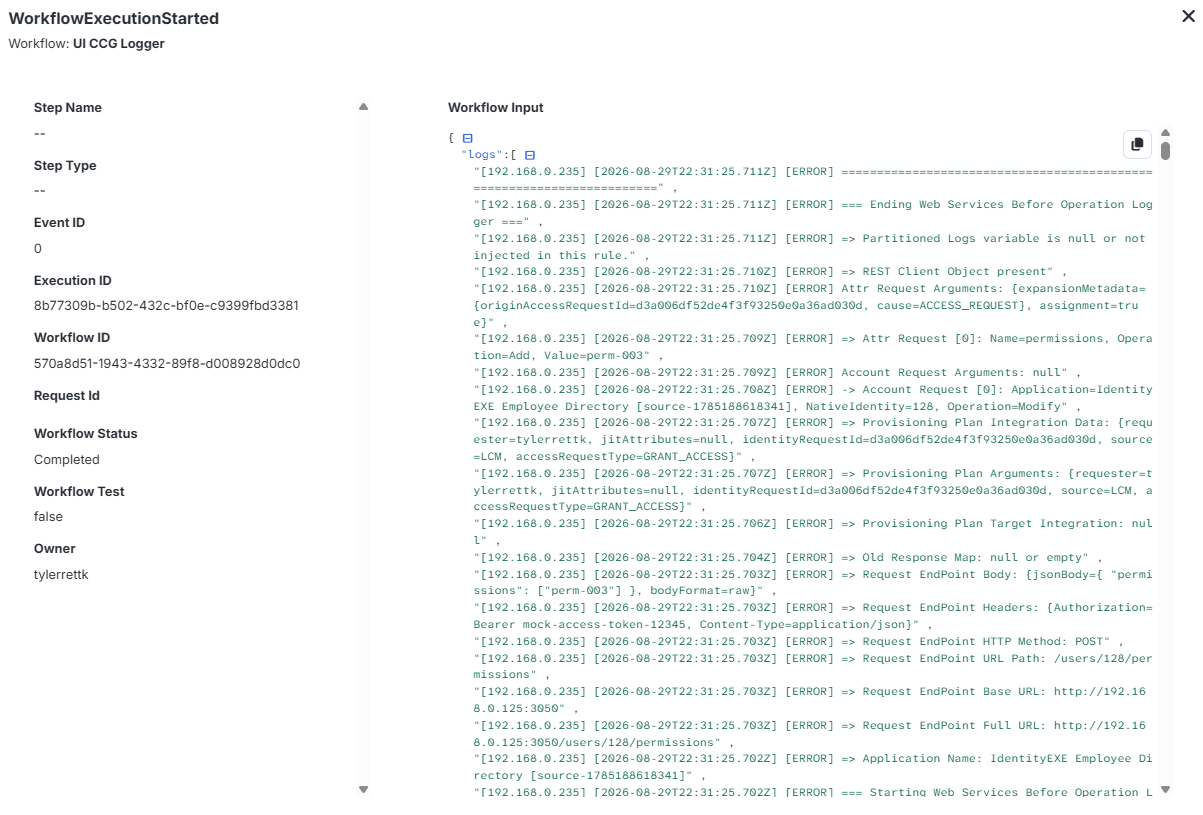
High-Level Flow: Our core engineering methodology structures the data layer to execute a lightweight PowerShell script on a secure Windows Server via Scheduled Task. This script connects to your Virtual Appliances using SSH, extracts relevant log lines based on dynamic filters configured directly in the ISC Workflow, and pushes those logs back to an ISC Workflow External Trigger. The result is a readable log output directly inside the Workflow Executions UI.
Dynamic Cloud Filtering
This modular framework ensures that your ISC deployment avoids rigid configurations. The script dynamically reads its grep filters from the target SailPoint Workflow's sp:define-variable step, so you never have to touch the Windows Server when adjusting filters.
include(List of Strings): Only return log lines containing these exact strings. Multiple strings act as an AND condition.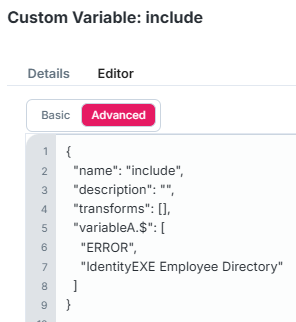
exclude(List of Strings): Strictly ignore any lines containing these strings to filter out noise.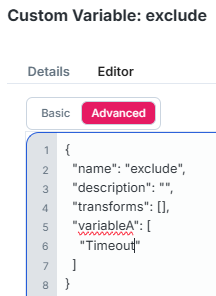
messageOnly(String): Setting this to "true" strips out the VA IP, Timestamp, and Level prefixes, returning purely the raw log message to save horizontal space.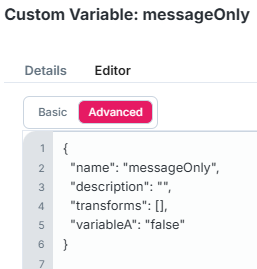
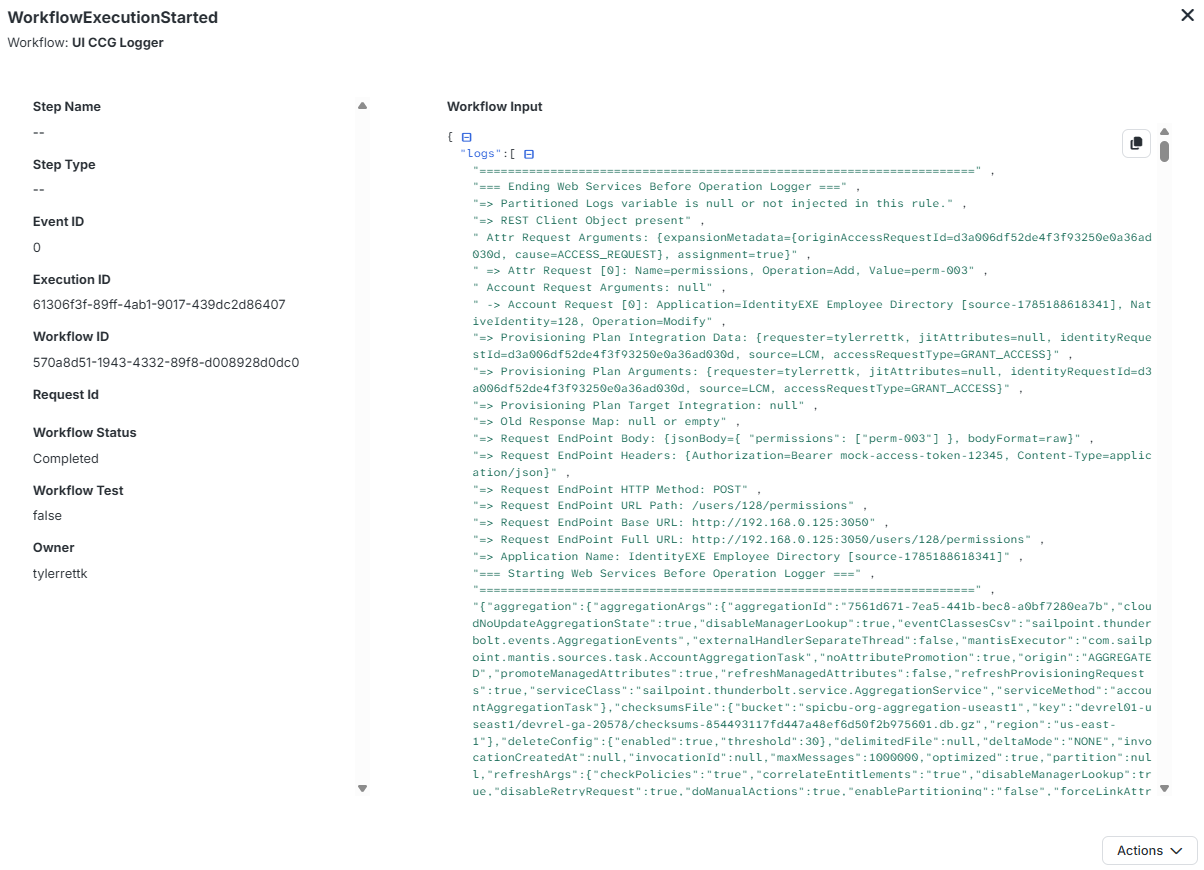
Because these logs are posted as a payload directly to an External Trigger, we leverage the built-in WorkflowExecutionStarted JSON Viewer in the UI to display our formatted log lines directly in the event details.
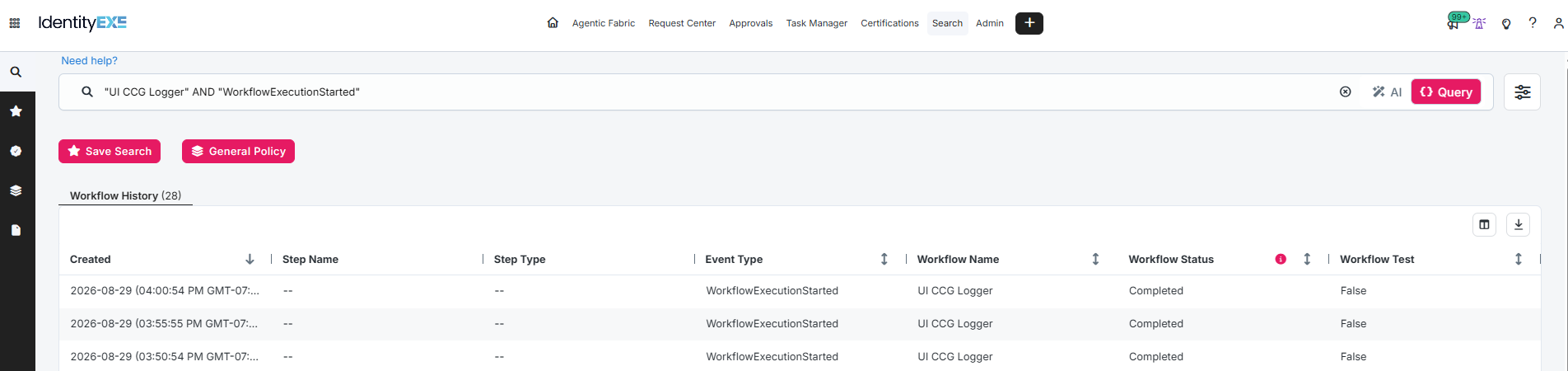
You can easily find your historical logs using ISC Search with this query: "UI CCG Logger" AND "WorkflowExecutionStarted"
Implementation Deep Dive
The solution relies on a few key components running on a secure Windows Server in your network. This IdentityEXE Blueprint utilizes the following logic:
1. Secure Credential Storage
Instead of storing passwords in plain-text, the setup scripts use Windows DPAPI (Data Protection API) to encrypt the credentials, tying the encryption to the executing Windows User profile. We store ISC credentials as a hash of SecureStrings and output them as an XML file:
$creds = @{
    WebhookClientId     = $webhookClientId
    WebhookClientSecret = $webhookClientSecretPlain
    ApiClientId         = $apiClientId
    ApiClientSecret     = $apiClientSecretPlain
}

$creds | Export-Clixml -Path $CredentialPath
2. Stable SSH Connectivity
To bypass cryptographic bugs in Microsoft's native Windows OpenSSH implementation against strict ETaM encryption, the setup script automatically uses plink.exe (PuTTY) and caches the SSH Host Keys:
foreach ($hostIp in $VaHosts) {
    cmd.exe /c "echo y | `"$plinkPath`" -ssh sailpoint@$hostIp -pw `"$plainPassword`" `"exit`"" | Out-Null
}
3. The Core Script Engine
The core engine fetches dynamic variables straight from the ISC Workflow by calling the /workflows/v1/:id API, dynamically builds a native Linux grep command, and formats the output directly to the Workflow Webhook URL:
$sshCommand = "cat /home/sailpoint/log/ccg.log"

if ($IncludeFilters.Count -gt 0) {
    foreach ($filter in $IncludeFilters) { $sshCommand += " | grep -i -F '$filter'" }
}
foreach ($filter in $ExcludeFilters) { $sshCommand += " | grep -v -i -F '$filter'" }

$sshCommand += " | tail -n $TailLines"

# Execute Native SSH and capture output
$sshResult = & $plinkPath -ssh $SshUser@$hostIp -pw $plainVaPassword -batch "$sshCommand" 2>&1
Configuration Snippets & Downloads
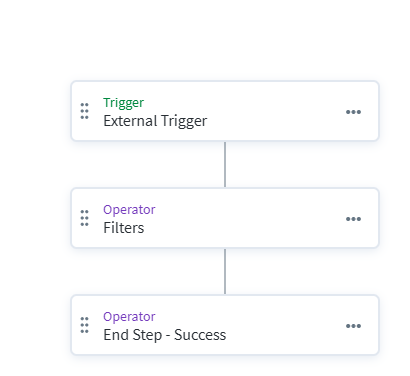
Workflow Configuration
The Webhook workflow configuration providing execution visibility.
Save-IscCredentials
Credential setup script using Windows DPAPI for ISC Secrets.
Save-VaCredential
VA setup script storing VA credentials and caching host keys.
Send-CCGLogsToWorkflow
The main engine script that parses workflows and executes grep over SSH.
Conclusion
By combining native Windows encryption, reliable SSH tools, and the extensibility of Identity Security Cloud Workflows, this solution bridges the gap between on-premise Virtual Appliances and the cloud UI.
Stop Guessing. Build with Precision.
A stalled identity governance rollout burns capital and stalls organizational momentum. If your team is hitting configuration walls or struggling with complex CCG log integrations, stop guessing. Book a targeted SailPoint Architecture Review directly with our engineering team to map out a clear path forward.
Book Your SailPoint Architecture Review